Nameservers tell the internet where to find your domain’s DNS, which decides where your website and email go. This guide shows you how to change them for a domain registered with HostCloud.

HostCloud nameservers

To use your domain with HostCloud hosting, use these nameservers:

Change nameservers in the Client Area

1

Open the domain's nameservers

Click Domains in the top menu. On the domain’s row, click the ⋯ menu and choose Manage Nameservers.You can also choose Manage Domain from the same menu, then click Nameservers in the sidebar.
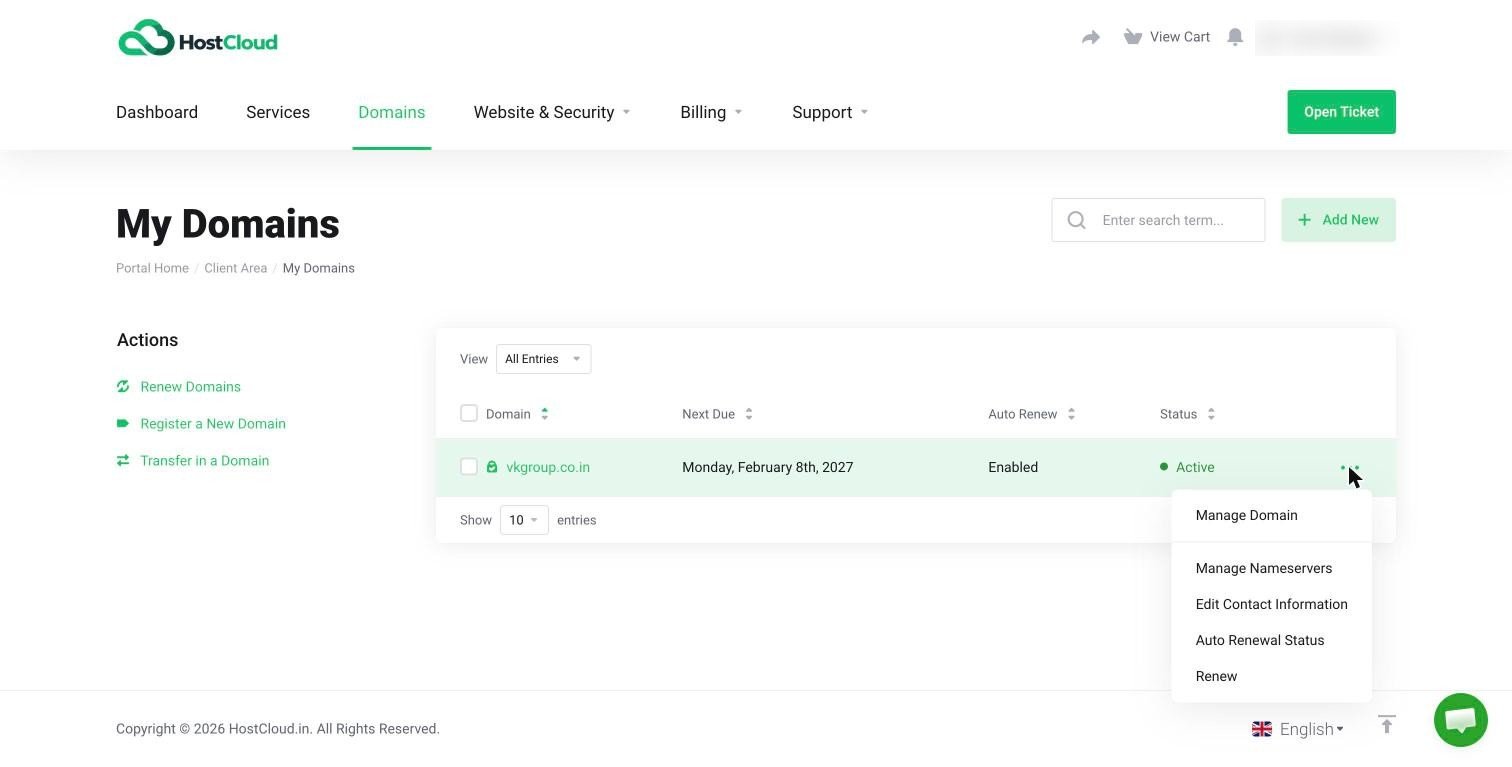
The ⋯ menu on a domain row, showing Manage Domain, Manage Nameservers, Edit Contact Information, Auto Renewal Status and Renew
2

Choose your nameservers

  • Use default nameservers: points the domain to HostCloud hosting (the 4 nameservers above). Choose this if your website and email are hosted with HostCloud.
  • Use custom nameservers (enter below): enter the nameservers from another DNS provider, such as Cloudflare, in Nameserver 1 to Nameserver 5. You need at least two.
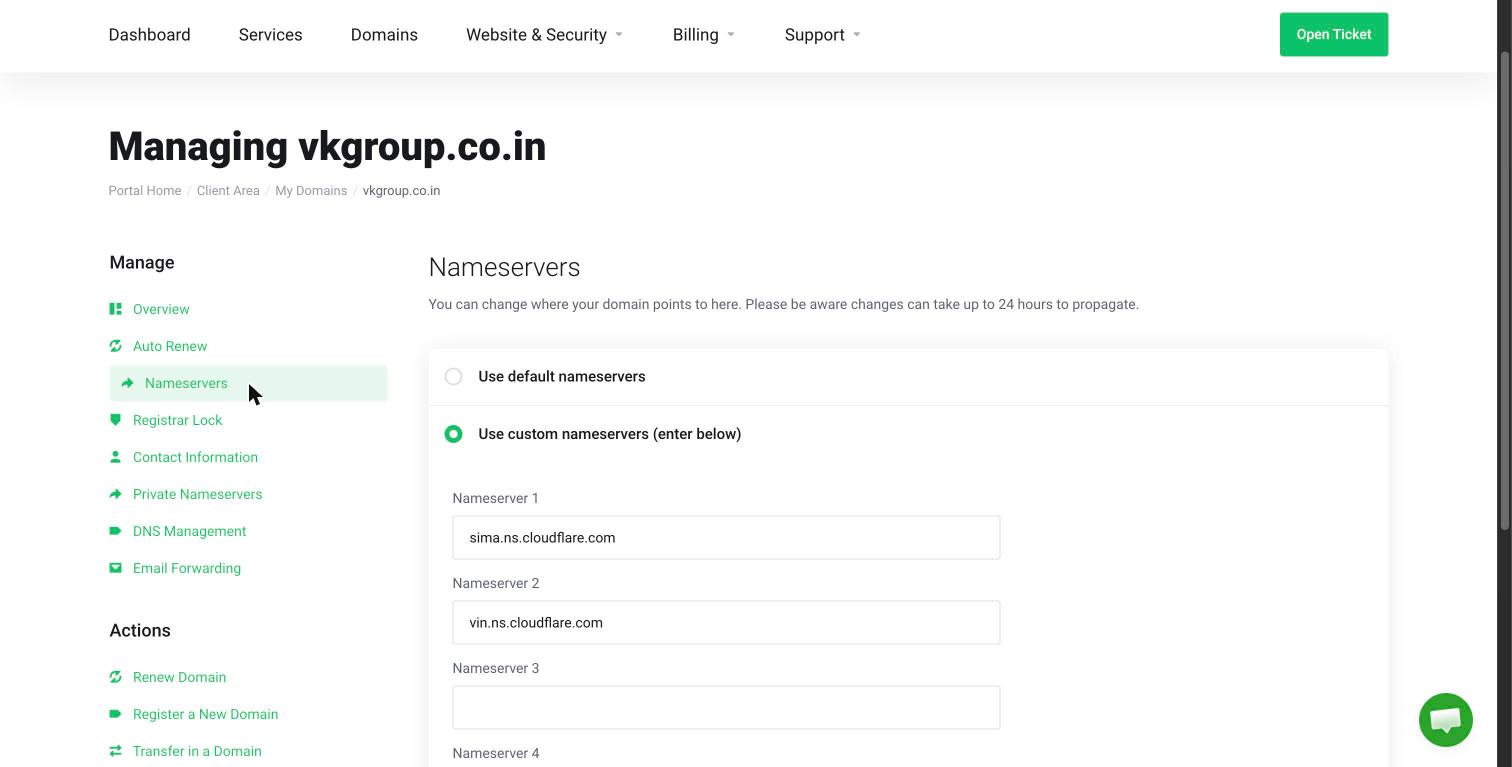
The Nameservers tab with the Use default nameservers and Use custom nameservers options, and the Nameserver 1 to Nameserver 4 fields
3

Save

Click Change Nameservers.
Nameserver changes can take up to 24 hours to work everywhere. During that time, some visitors may still reach the old location. See How long DNS propagation takes.
Changing nameservers moves your whole DNS zone. If you use email or other services set up at your old DNS provider, recreate those records at the new one first, or they’ll stop working.

Domain registered somewhere else?

Log in to the provider where the domain is registered and change the nameservers there. Use the 4 HostCloud nameservers above if your hosting is with HostCloud. Related: Point your domain to HostCloud · Where to edit your DNS Still stuck? Open a ticket with the domain name.