

Browser console
The console shows your server’s screen in your browser, as if a monitor and keyboard were plugged into it. It works even when SSH and the network setup inside the server are broken.1
Open the server panel
In the Client Area, click Services in the top menu, then open your VPS.
2
Open the console
Click Console at the top of the server panel. A console window opens.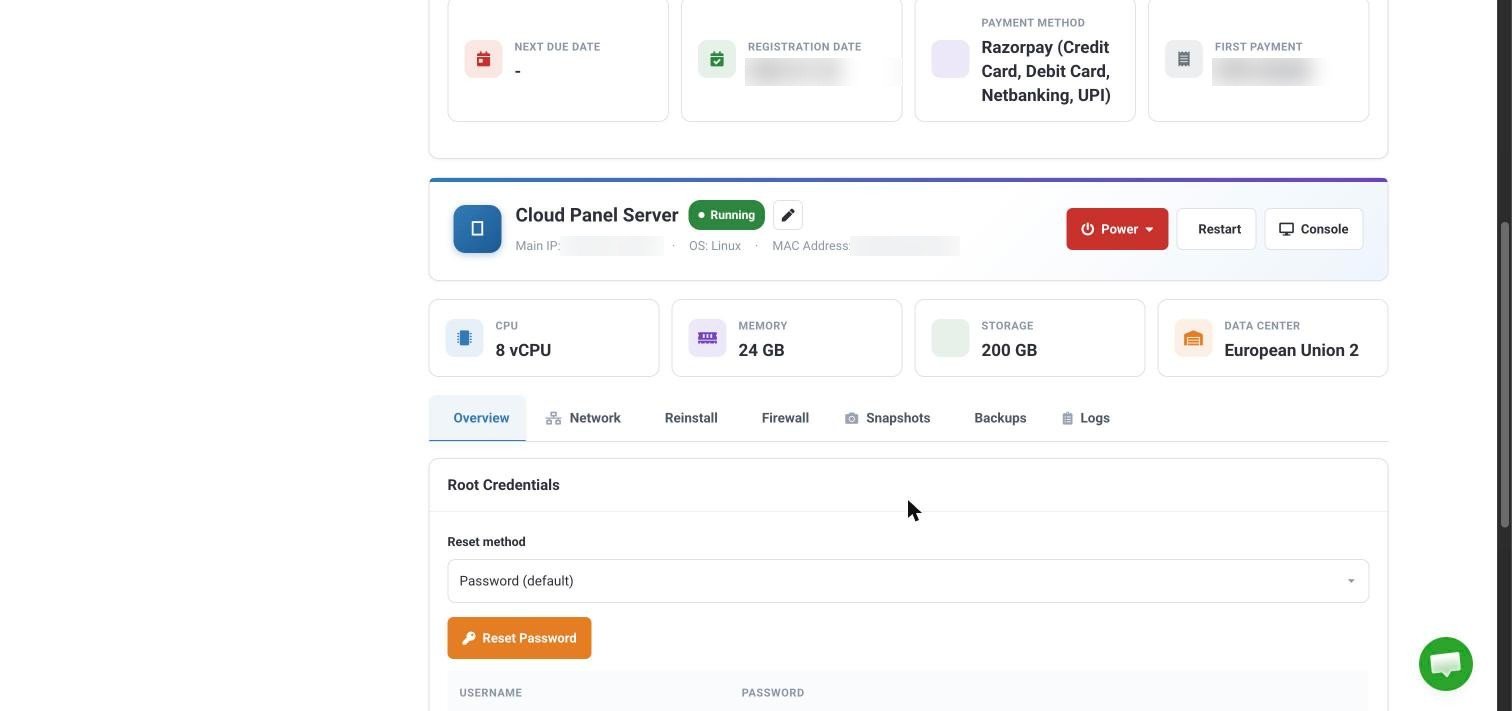
3
Log in
Click inside the console window, type
root, press Enter, then type your root password. Nothing appears while you type the password. That’s normal.Rescue mode
If your server won’t start at all, rescue mode starts it from a separate, temporary system. From there you can reach your server’s disk to copy files off or fix settings. [[TODO: where rescue mode is in the VPS panel, and how customers turn it on and off]]Still locked out?
- Power lets you stop, shut down or restart the server, and Restart reboots it.
- As a last resort, you can reinstall the operating system. This deletes everything on the server.