

1
Open the server panel
In the Client Area, click Services in the top menu (page: My Products & Services), then open your VPS.
2
Open the Reinstall tab
Click the Reinstall tab. You’ll see a message that reinstall protection is on.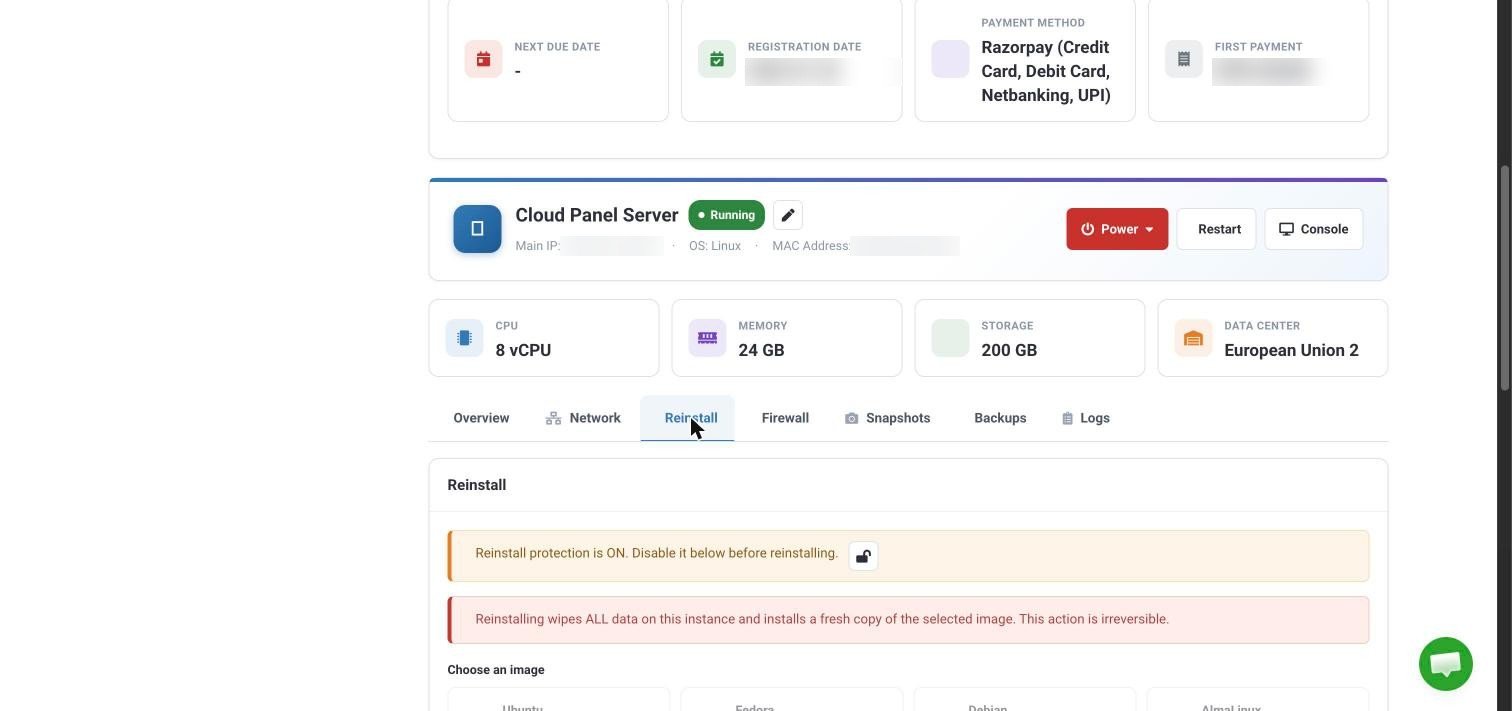
3
Turn off reinstall protection
Click the unlock button next to the reinstall protection message. Protection stops a reinstall from happening by mistake.
4
Choose an image
Under Choose an image, pick the operating system, such as Ubuntu, Debian, AlmaLinux, Rocky Linux or Fedora. If you’re not sure, choose the newest Ubuntu LTS version.
5
Add an SSH key (optional)
Paste your public SSH key if you want to log in with a key instead of a password. See First steps to secure a new VPS.
6
Add Cloud-Init (optional, advanced)
Cloud-Init lets you run setup commands automatically on first boot. Leave it empty unless you know you need it.
7
Start the reinstall
Confirm the reinstall. It usually takes a few minutes. The server panel shows the status.
After the reinstall
- Your server keeps the same IP address.
- Log in as
root. If you don’t have the new password, open the Overview tab and use Reset Password under Root Credentials. - Your computer may warn that the server’s identity has changed the next time you connect with SSH. That’s expected after a reinstall. Remove the old entry with
ssh-keygen -R 203.0.113.10(use your server’s IP), then connect again. - Secure the new system again. See First steps to secure a new VPS.