HostCloud VPS plans are semi-managed: you’re responsible for your server’s software, security updates and backups. If you’d rather we do this for you, managed VPS help is available at ₹1,500 + GST per hour. Open a ticket to request it.
root. The commands below differ slightly depending on your operating system.
1. Install updates
- Ubuntu / Debian
- AlmaLinux / Fedora
reboot, then log in again.
2. Change the root password
Replace the password from your welcome email with a new, long one that you don’t use anywhere else:3. Create your own user
Day-to-day work is safer as a normal user that can usesudo when needed. Replace priya with the username you want.
- Ubuntu / Debian
- AlmaLinux / Fedora
sudo -i.
4. Use an SSH key instead of a password
An SSH key is much harder to guess than a password. On your own computer (not the server), create a key and copy it to the server:203.0.113.10 with your server’s IP address. On Windows, if ssh-copy-id isn’t available, copy the contents of the .pub file into /home/priya/.ssh/authorized_keys on the server.
Then check that you can log in with ssh priya@203.0.113.10 without being asked for the server password.
5. Turn off password and root logins
Only do this once your SSH key login works. On the server, edit the SSH settings:# at the start) and set them to:
- Ubuntu / Debian
- AlmaLinux / Fedora
6. Turn on a firewall
A firewall blocks every connection you haven’t allowed. Always allow SSH first, or you’ll lock yourself out.- Ubuntu / Debian
- AlmaLinux / Fedora
7. Set up backups
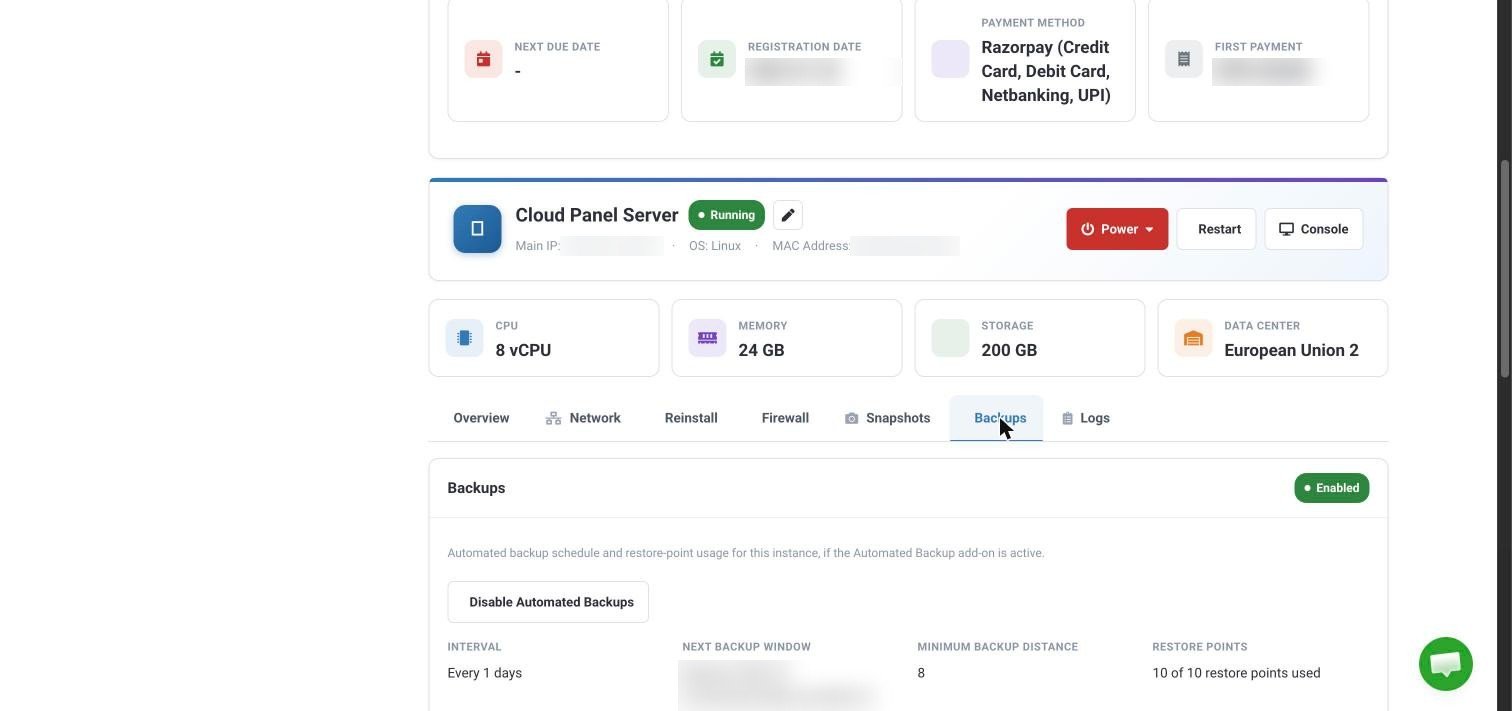
Your VPS isn’t backed up unless you set it up. You can:- Add the Automated Backup add-on from your VPS’s Addons page in the Client Area. Its status and restore points show on the Backups tab.
- Take a snapshot before big changes, from the Snapshots tab with Create Snapshot.
- Keep your own copy of important data somewhere other than the server.